



Using checklists
List view
The home page of a checklist management shows every checklist in that instance. Four statistics tiles, a toolbar, and three switchable views help you keep track at a glance.
Statistics tiles
Four tiles at the top of the list act as both a metric and a filter. Clicking a tile filters the list accordingly; clicking «All» again clears the filter:
- All checklists — the number of all checklists in this management
- Active — checklists that are not yet completed
- Overdue — checklists whose due date has passed
- Assigned to me — checklists where the currently signed-in person is assigned to at least one task

Toolbar
The toolbar provides the following functions:
- New — creates a new checklist (see Create a checklist)
- New template — opens the template wizard (only visible to site owners)
- Filter — same options as the statistics tiles (All / Active / Overdue / Assigned to me)
- Sort — by title, progress, due date, or last modified, each ascending or descending
- Group — by status or by a custom choice, text, or person field
- Search — searches checklist titles and metadata
- View — switches between table, cards, and board (see below)
- Column picker — in the table view: which custom fields appear as additional columns
- Personalize — opens your personal settings (see Personalization)
- Settings — opens the management of templates, fields, appearance, and setup (only visible to site owners)
If exactly one checklist is selected via its checkbox, direct actions to complete or delete it also appear in the toolbar. The context menu («…») of an individual row also lets you open, complete, or delete a checklist.

Three views
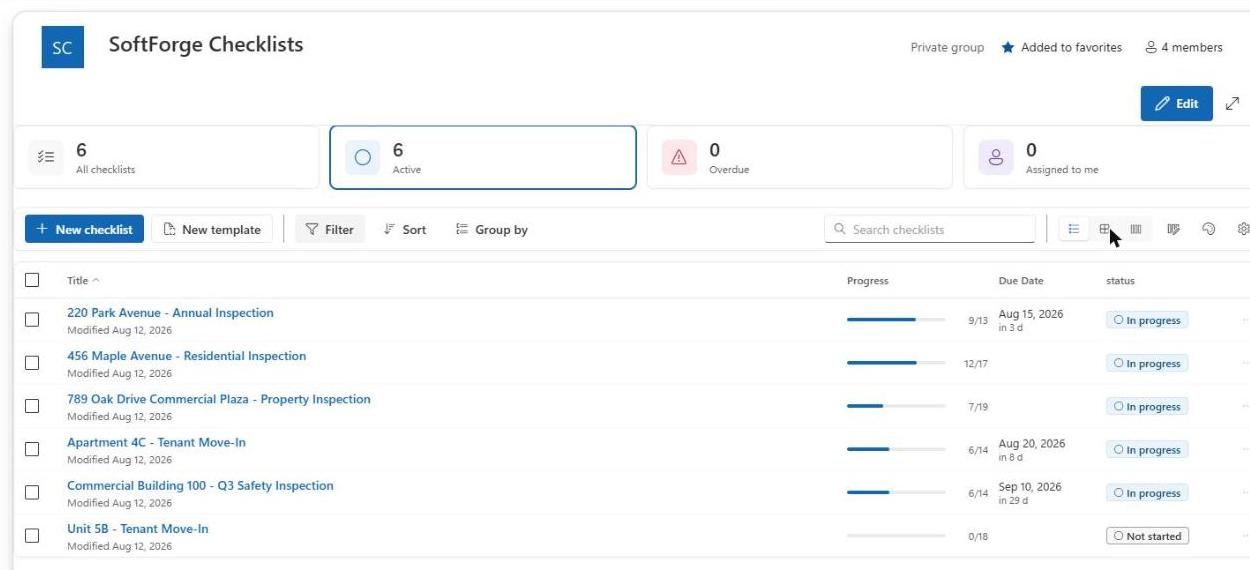
Table
Shows title, progress (bar plus the count of completed/total tasks), due date, status, and any custom fields as additional columns. Column headers are clickable and sort the list. Sequential checklists are marked with an icon next to the title. If grouping is active, rows are collapsed under their group heading.
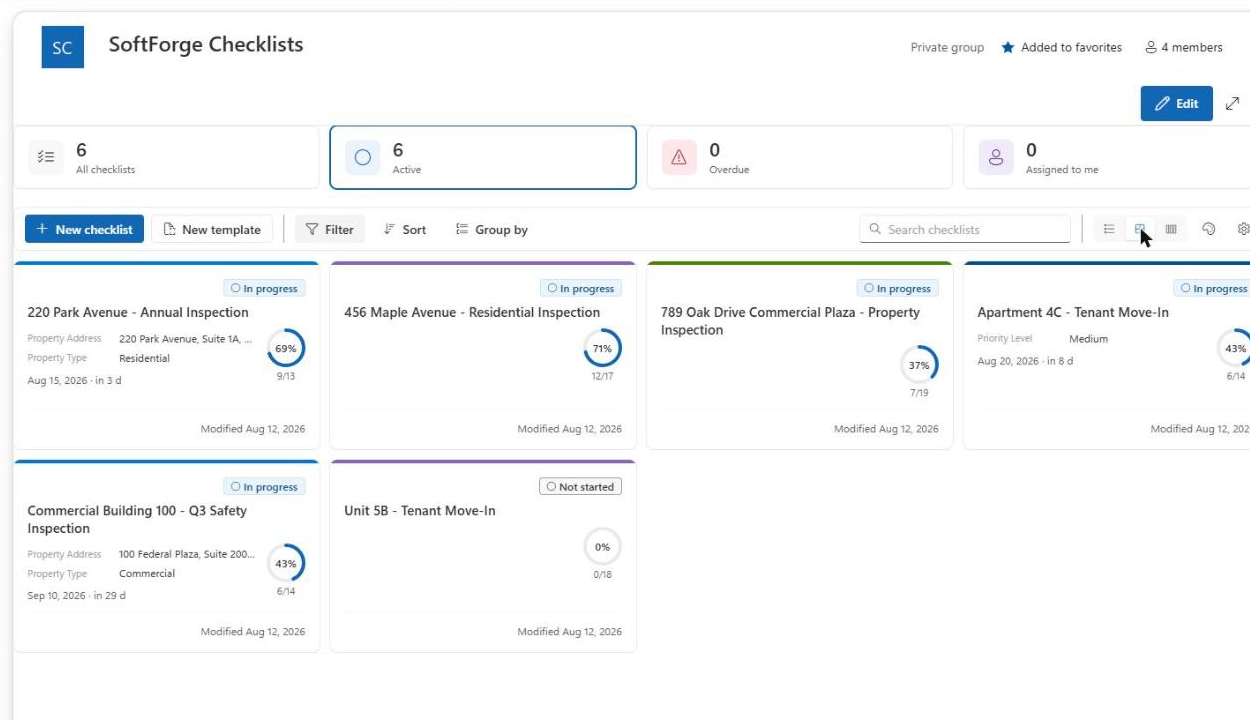
Cards
Each card shows a color bar (derived from the checklist title), a status badge, the title, up to three additional fields (see Card appearance), the due date, a progress ring, and the assigned people as an avatar stack.
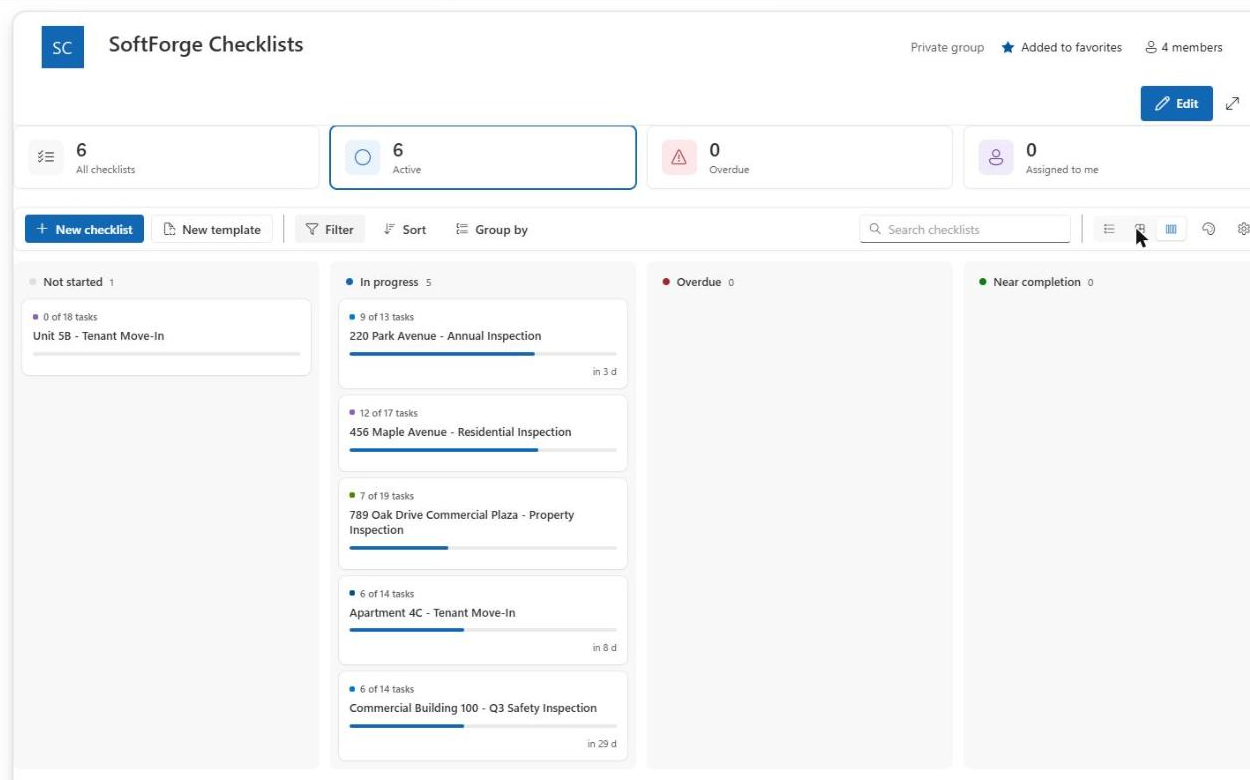
Board
Checklists are automatically grouped by progress into four columns: Not started, In progress, Overdue, and Near completion (including completed checklists). This grouping is derived automatically from status and due date and cannot be rearranged manually.
Note
Which view is shown by default is a personal setting. You can change it at any time using the view switcher in the toolbar or via «Personalize» — see Personalization.