
Templates & fields
Custom fields
Fields are the metadata columns of checklists — for example «Property / address», «Scope of audit», or «Contract end date». Define a field once and use it in as many templates as you like.
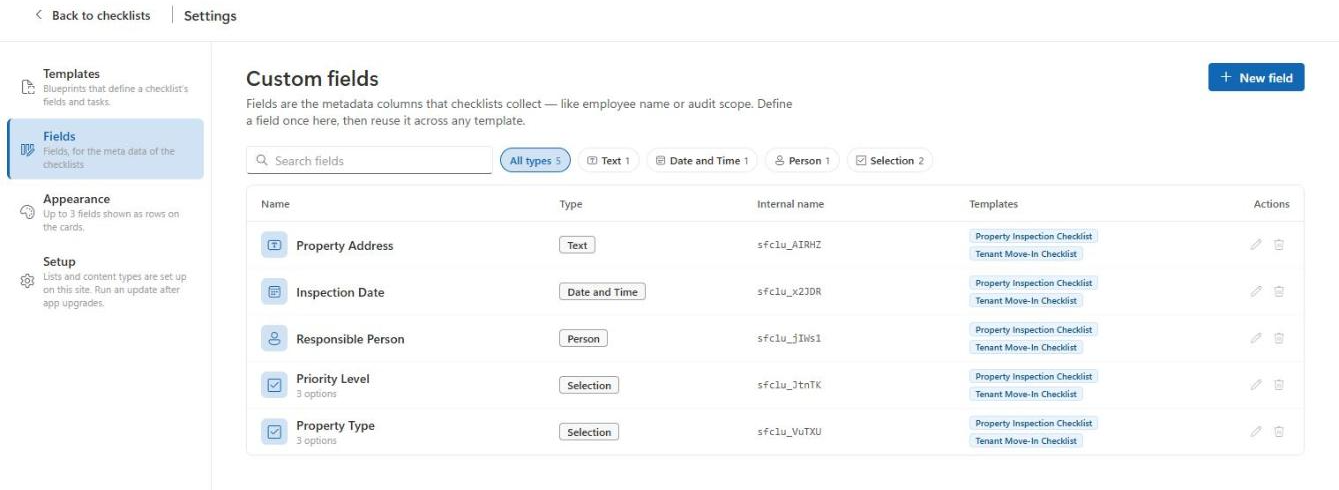
Open the settings and switch to «Fields». The overview shows the name, field type, internal name, and which templates a field is used in. Use the filter chips at the top to filter by field type, or the search field to search by name or internal name:
Creating a new field
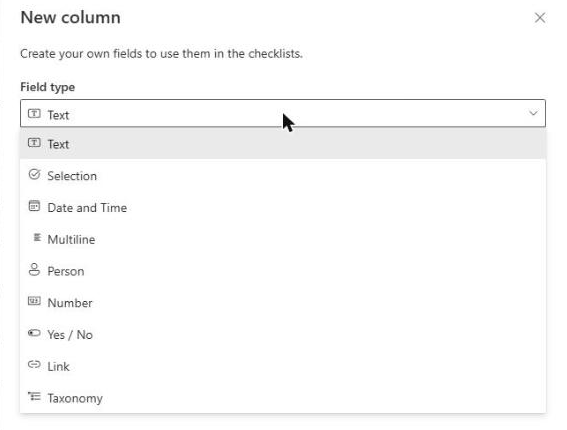
Click «New» and choose a field type:
| Field type | Description |
|---|---|
| Text | Single-line text |
| Selection | A list of fixed choices |
| Date and time | A date, optionally with a time |
| Person | One or more people from the directory |
| Number | A numeric value |
| Yes / No | A boolean value with a default |
| Link | A URL with an optional label |
| Multiline | Multi-line text, optionally rich text |
| Taxonomy (Managed Metadata) | A term from a SharePoint term set |
Depending on the field type, additional options appear, e.g. the list of choices, «Get time» for date fields, «Allow multiple selection» for person fields, or term group/term set for Managed Metadata fields. Every field can also be marked as a mandatory field.
Note
New fields can also be created directly from the template wizard, without leaving the settings.
Editing or deleting a field
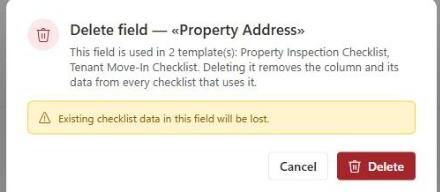
The actions column lets you edit or delete a field. If a field is used in at least one template, the delete dialog shows which templates use it — deleting it removes the column and its existing data from every checklist. This action cannot be undone.