



Personalization & setup
Personalization
Everyone can set up Checklists to their own taste. These settings are stored locally in the browser (localStorage) and apply only to your own account — they aren't visible to other users and are scoped to each device/browser.
Open the Personalize icon in the toolbar of the list view to open the panel:
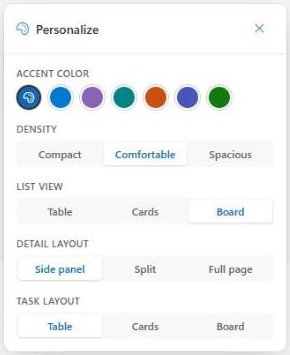
The following settings are available:
- Accent color — one of several colors, or «Automatic», which follows the accent color of the SharePoint or Teams site
- Density — Compact, Comfortable, or Spacious, controlling the row height of tables and task lists
- List view — the preferred default view of the checklist overview: table, cards, or board
- Detail layout — the preferred layout when opening a checklist: side panel, split, or full page
- Task layout — the preferred default view of tasks in the detail view: table, cards, or Kanban
All changes take effect immediately and are automatically applied again the next time you open Checklists.
We use cookies to continuously improve our website and service. Privacy policy